
How to Split Panoramas into Seamless 20-Image Posts for X
Learn how to turn wide photos and panoramas into seamless, swipeable multi-image posts on X (Twitter)—up to 20 slices, 100% in your browser.
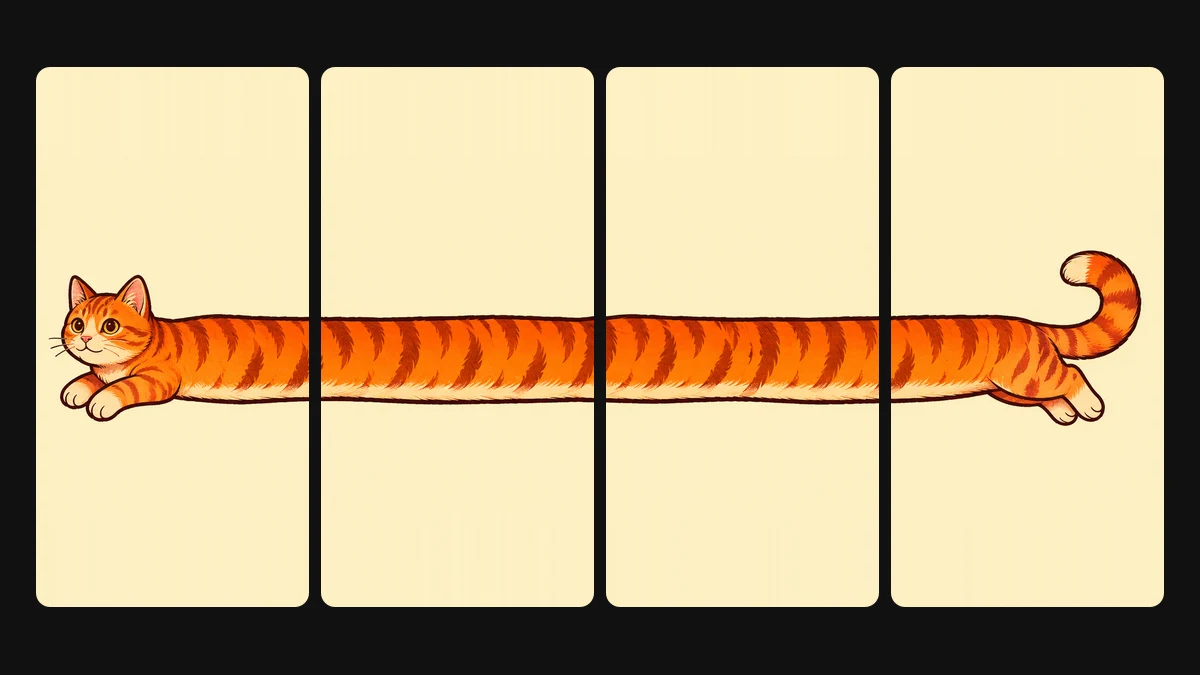
When you post a wide panoramic photo or horizontal artwork directly to X (Twitter), the feed shrinks it into a narrow banner. Details disappear, text becomes unreadable, and followers scroll past without clicking.
With X now supporting up to 20 images in a single post, you can slice any wide visual into an ordered, full-screen swipe sequence that invites followers to explore every detail.
Here is the complete walkthrough to create seamless multi-image posts for X.
1. Choose or generate your wide image
Start on the Image Splitter workspace. You have two options:
- Use your own photo: Drag and drop an image onto the splitter, click Choose image, paste directly from your clipboard, or scan the QR code with Use your phone to transfer a photo from mobile.
- Generate a wide visual: If you need high-resolution source material, switch to Create. Enter a prompt (e.g., an expansive cityscape or coastal panorama), select a wide aspect ratio like 16:9 or 21:9, and generate with Seedream 5.5. When finished, click Use in Image Splitter to load the image into the splitter immediately.
2. Set your slice count (2 to 20 images)
Under Number of images, select how many slices you want to produce. X allows up to 20 photos per post:
- 2 to 4 slices: Ideal for standard 16:9 landscape photography and short visual panoramas.
- 5 to 10 slices: Great for architectural vistas, city skylines, and episodic comic strips.
- Up to 20 slices: Perfect for ultra-wide panoramic journeys, detailed timelines, and product lookbooks.
3. Adjust split lines with pixel-level precision
Switch between Equal and Custom splitting modes:
- Equal: Divides your entire image evenly across all slices.
- Custom: Drag split lines directly on the canvas or type exact pixel widths under Slice widths. This lets you nudge cut lines away from key focal points, faces, or typography so nothing gets awkwardly split down the middle.
4. Check the real-time Post Preview
Switch to Post Preview to see how your sequence looks inside simulated mobile and desktop feed frames.
The X mobile app shows thin spacing between images. Because slices are cut exactly on pixel boundaries with 1:1 original dimensions, horizons and visual lines stay aligned across card gaps as followers swipe through.
5. Export and publish on X
Click Export to generate your final images:
- On a phone: Tap Share all images to open your mobile share sheet and send every slice directly to X in one tap.
- On a desktop: Click Download ZIP and open X. Unzip the archive and attach the numbered images (
01,02,03…) in numerical order to your new post.
Your images are processed 100% client-side in your browser at full native resolution—zero compression artifacts, zero server uploads, and completely free.